

If you manage social media with a team or agency, there will come a time when you need to give someone access to your Twitter (X) account — without sharing your password.
Thankfully, X (formerly Twitter) makes it easy and secure to do this through delegated account access. This feature lets you authorize others to post, reply, and manage your account — without giving away your login credentials.
In this post, we’ll show you step-by-step how to give access to your Twitter/X account via the web, explain how delegation works, and share some important limitations you should know.
Important: Each X (Twitter) user can only be delegated to manage up to 5 accounts at a time. If they’re already managing 5, they’ll need to remove one before they can accept a new invitation.

What Is Delegated Access on X (Twitter)?
Delegated access (also known as “Team Access”) allows you to give someone permission to manage your account without sharing your username or password.
Here’s what delegates can do:
- Post and schedule tweets
- Manage drafts
- Access notifications
- View analytics
And here’s what they cannot do:
- Change your account password
- Edit sensitive settings (like email or phone)
- Delete your account
It’s a secure, professional way for brands, influencers, and agencies to collaborate on Twitter.
How to Give Access to Your X (Twitter) Account (Using Web)
Follow these simple steps to delegate access via the Twitter/X website:
- Log in to your account at https://x.com.
- Click your profile icon in the bottom-left corner.
- Go to Settings and privacy.
- Select Security and account access → Account access and security → Members you’ve delegated.
- Click Invite a member.
- Enter the @username of the person you want to invite.
- Choose their role:
Contributor – Can post and engage on your behalf
Administrator – Can post, engage, and manage other team members - Click Send invitation.


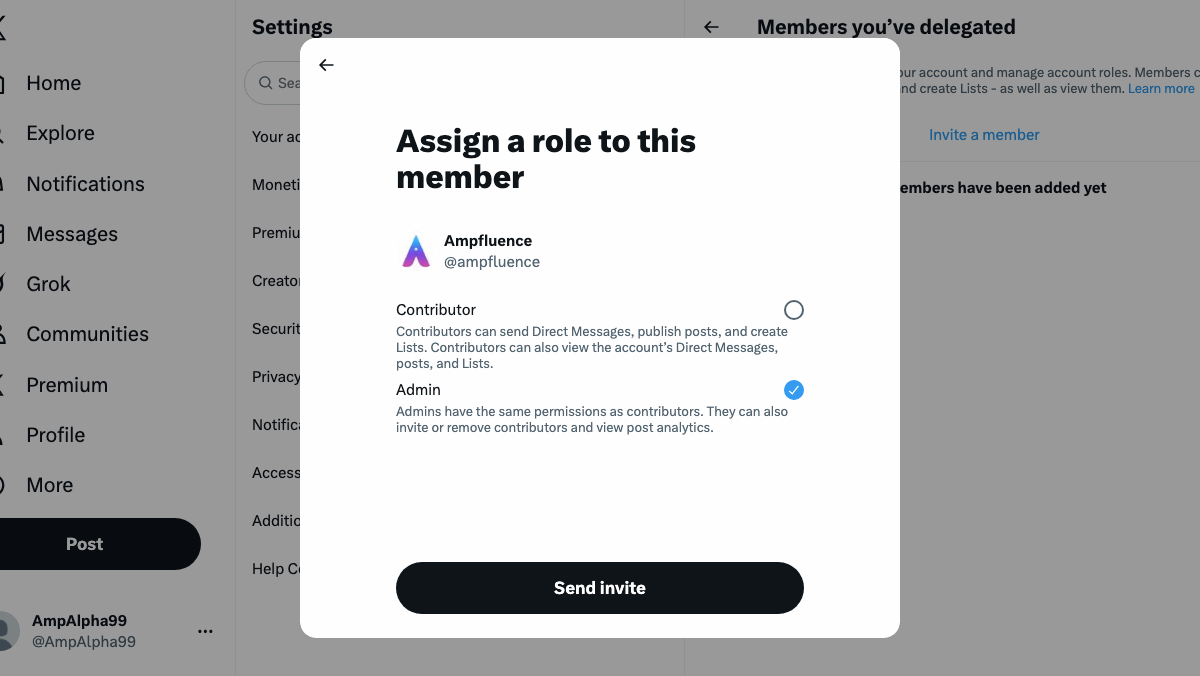
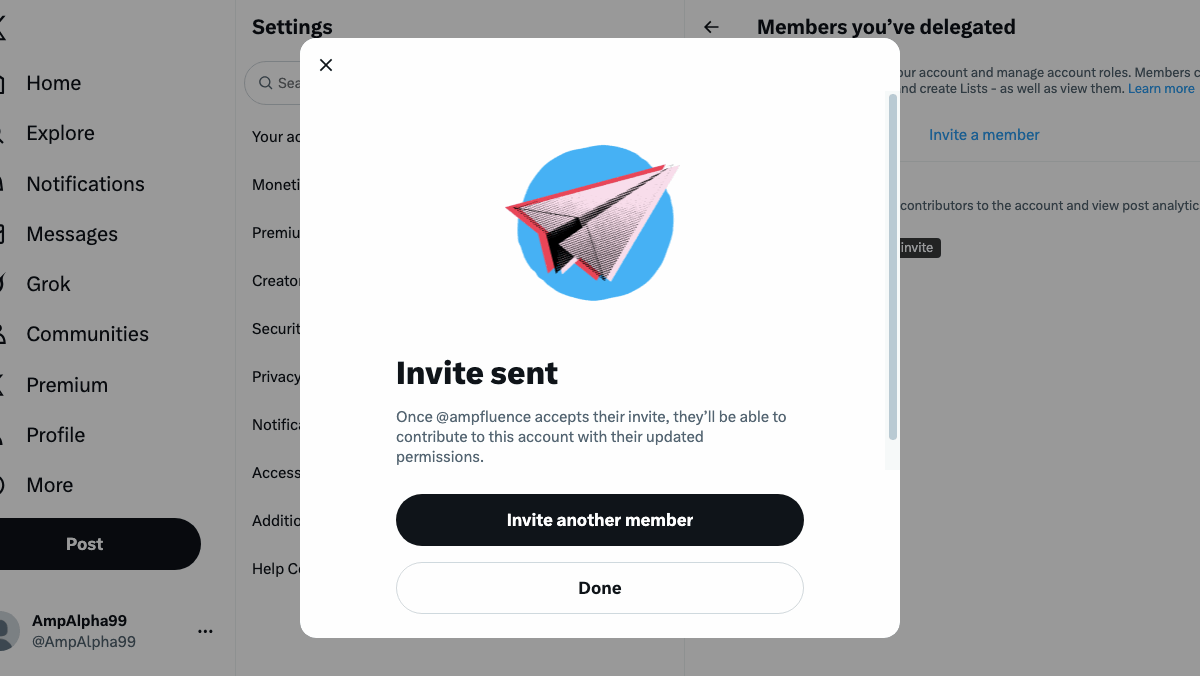
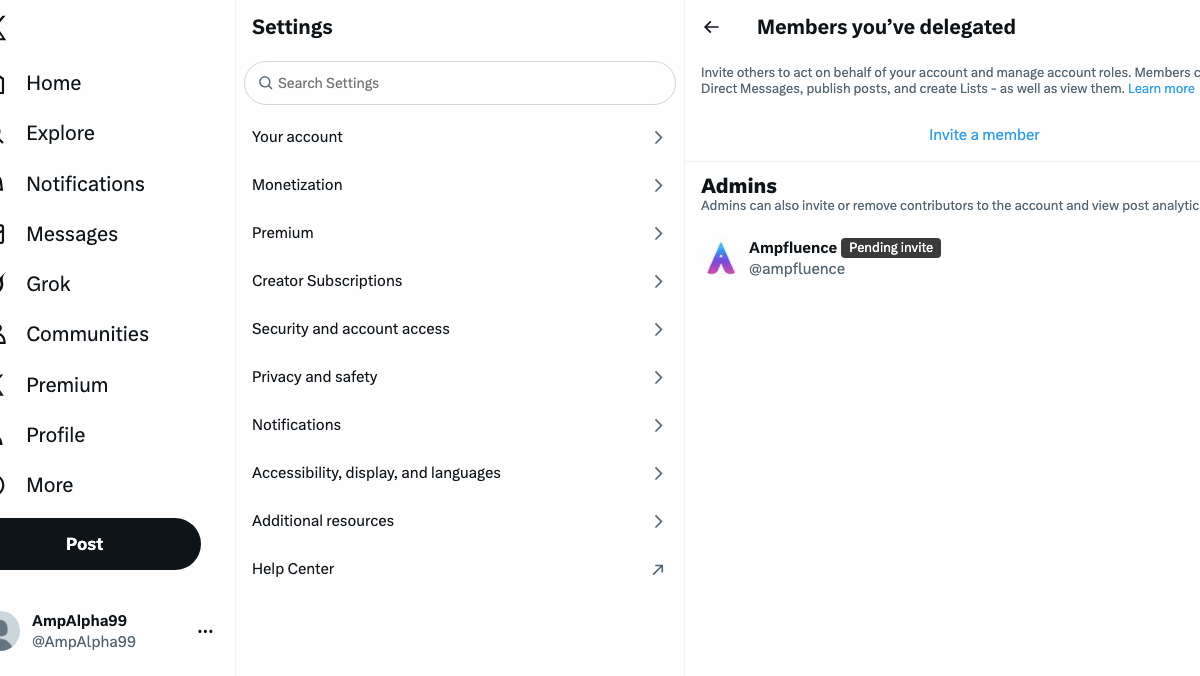
The person you invited will receive a notification on their own X account. Once they accept, your account will appear in their account switcher menu (so they can toggle between accounts easily).
How to Accept an X (Twitter) Account Invite
If someone invited you to manage their X account:
- Log in to your personal X account on https://x.com.
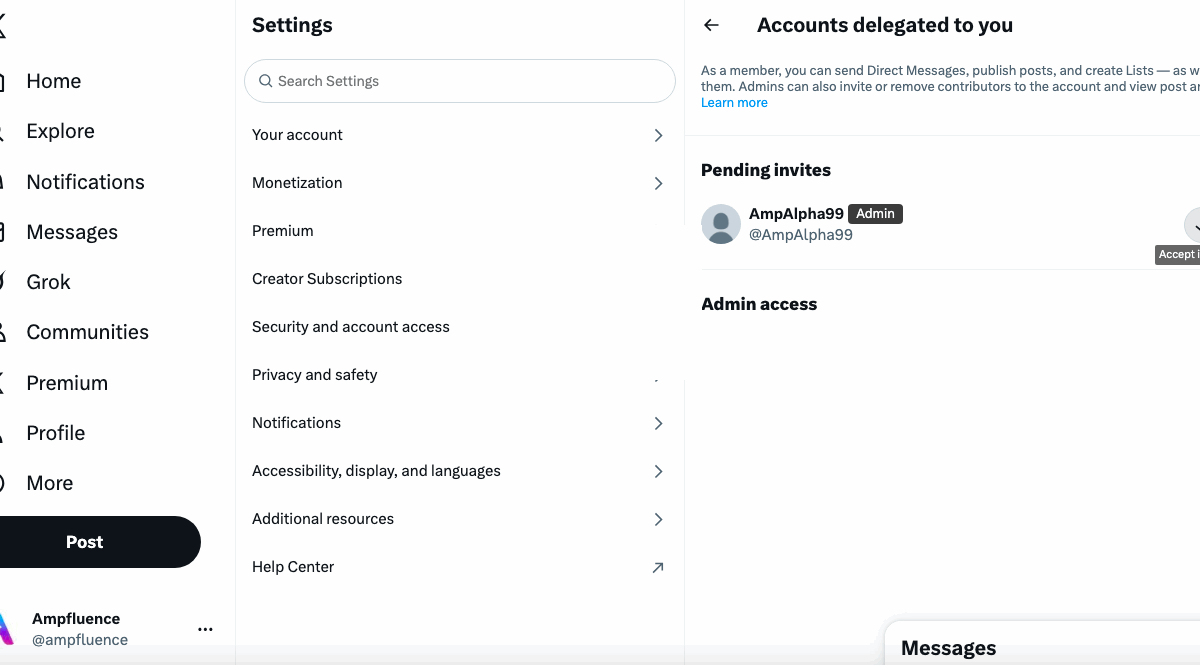
- Go to your Notifications tab or on your delegations and click Accounts delegated to you.
- You’ll see an invitation notification — click it.
- Choose Accept invitation.
After you accept, you’ll see the account under your profile icon menu, and you can switch between accounts seamlessly.

How to Edit or Remove Access
If you ever need to update or remove someone’s access:
- Go to Settings and privacy → Security and account access → Accounts delegated to you.
- You’ll see a list of people who currently have access.
- Click the three dots (⋯) next to the person’s name.
- Choose Edit role and Remove or Leave.
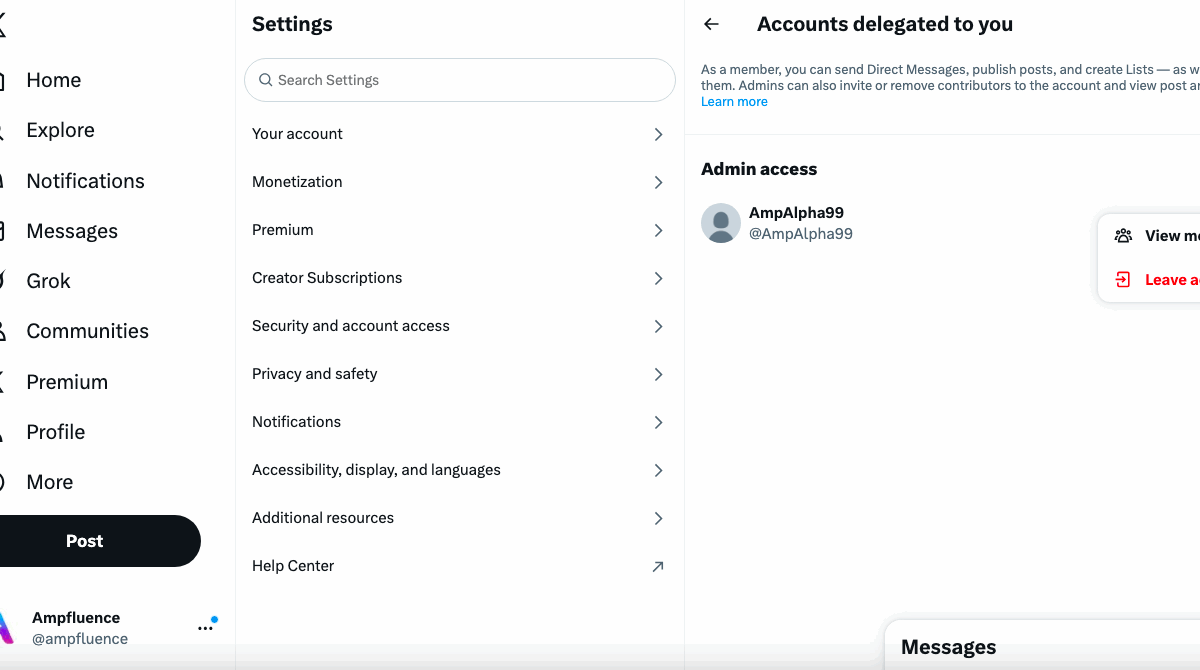
Changes take effect immediately, so if someone leaves your team or agency, they’ll lose access instantly.
Understanding the 5-Account Delegation Limit
Each user on X can manage up to five delegated accounts at once. This includes all accounts where they’ve been added as a team member.
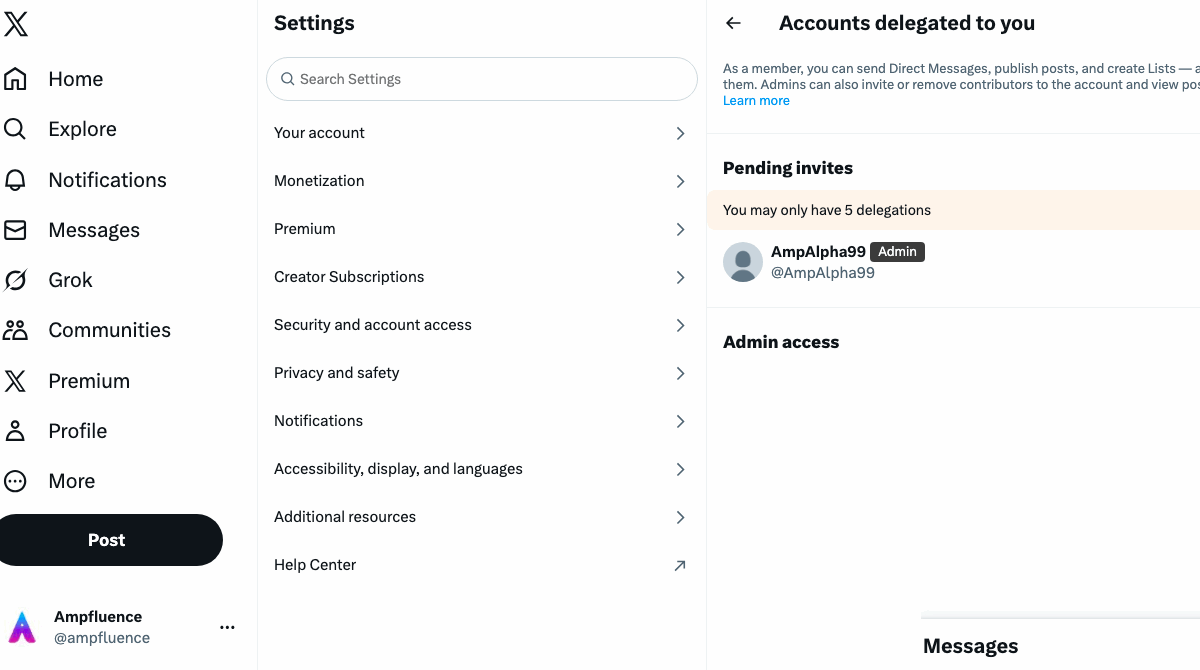
This means:
- You can invite multiple users to your account.
- But any single user (like your social media manager) cannot be added to more than 5 accounts total.
If they try to accept an invitation beyond that limit, they’ll receive an error message and won’t be able to accept until they remove one existing delegated account.
Tip: For agencies managing multiple clients, keep a record of which team member is assigned to which accounts. This ensures smooth access rotation and compliance with the 5-account limit.
Final Thoughts
Granting delegated access on X (Twitter) is one of the best ways to collaborate safely. Whether you’re working with a social media agency, internal team, or ad manager, delegation ensures your account stays secure while giving others the control they need to do their jobs effectively.
Just remember:
- Always review who has access every few months.
- Keep in mind the 5-account limit per user.
- Remove old delegates promptly when roles change.
With these practices, you’ll keep your account secure and your workflow efficient.





6 Responses
I want to remark how much I like this essay and how often I use it. I believe you’ll keep posting things that are better than average here retro games.
Someone I know spent months trying to balance work stress with trying to meet new people, which often left them exhausted by evening. They said the pressure of juggling profiles felt heavier when apps behaved unpredictably. While trying to understand what that experience could be like for others, they noticed people referring to match when describing questions about subscription changes or unclear account features. Hearing how others handled that gave them a clearer picture before deciding whether to stay on the platform.
I read the text about delegated access on Twitter/X — the presentation is quite clear, especially if you manage social networks in a team. I liked that everything is described step by step without unnecessary technical terms, although I would like to see more examples of where it really saves time. By the way, when I was looking for similar simple explanations in other areas, I came across https://ways2well.com/blog/stem-cell-therapy-vs-surgery-which-treatment-is-right-for-you — it has a completely different level of detail, but explains complex medical topics in a very accessible way. The text about X is also easy to read and useful for beginners.
Multiplayer features make cowboy safari appealing to friends who want to explore the wilderness together.
The site functions as an all-in-one entertainment destination for people in Bangladesh, combining cаsіnо games and sports betting under a unified interface. Middle-of-page link https://8mbets-bd.com/app/ allows users to quickly switch to the app environment. The website presents odds, game options, and support information in a structured manner — keeping navigation simple and manageable.
Hey everyone, I noticed this casino after a short banner popped up while I was reading sports news late at night. I usually skip ads, but curiosity won. Playing from Australia, I wanted to understand money flow first, so I spent time reviewing Mateslots deposits and withdrawals. My first session was full of small losses and doubts, yet a later win helped me recover everything and leave the game calm instead of annoyed.